How to Design a CRM System: UX Process, Key Screens and Best Practices


AI Summary. What’s included?
This guide explains how to design a CRM system that people keep using, whether it is a product, a vertical CRM or an internal tool. It defines CRM design as three layers: data model, workflows and UI. The guide walks through the process step by step, from mapping users and workflows to data modeling, navigation, key screens, prototyping with real data and handoff, then covers record pages, list views, pipelines, dashboards, activity logging and search. It also covers best practices, AI features, examples, common mistakes and cost.
How to design a CRM system: the UX process step by step, the data model, key screens like record pages and pipelines, AI features and common mistakes.
Most CRM systems fail in the same quiet way: salespeople stop updating them. Deals live in spreadsheets and inboxes, managers chase people for pipeline numbers, and the expensive system becomes a reporting tool nobody trusts. The cause is rarely missing features. It's that entering and finding information takes more effort than it's worth to the people doing the work.
This guide is about designing a CRM so that doesn't happen, whether you're building a CRM product, a vertical CRM for a specific industry, or a custom internal system. It covers the design process step by step, the screens that matter most, and the mistakes that sink adoption.
What CRM design covers
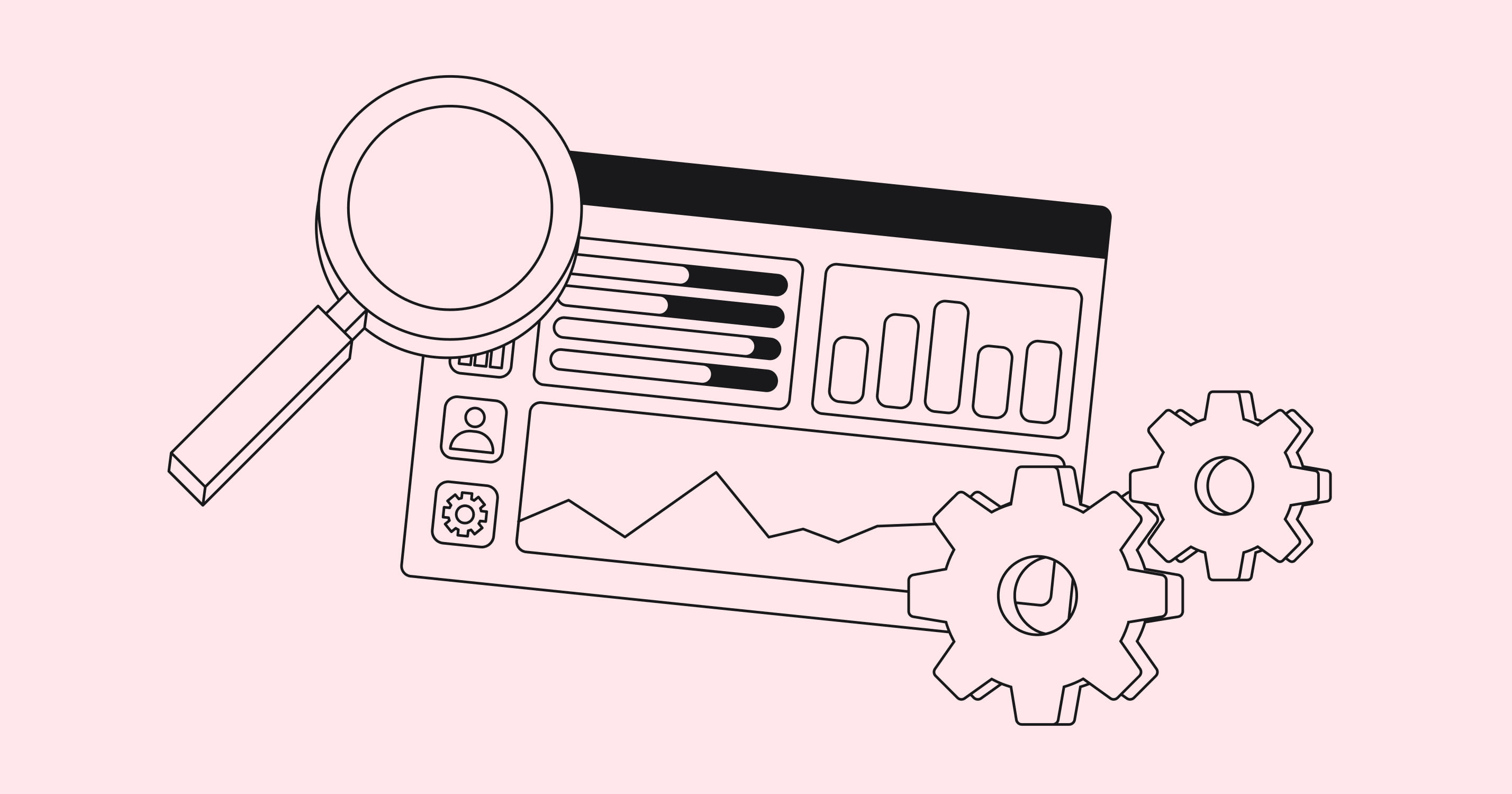
CRM design is more than the interface. It covers three layers that depend on each other: the data model (what objects exist and how they relate), the workflows (how people move a lead to a deal to a renewal), and the UI that exposes both. A beautiful screen on top of the wrong data model will still frustrate users, because every task will need workarounds.
Before designing anything, settle what you're actually building. Most companies don't need a CRM from scratch.
The rest of this guide focuses on the last two cases, where you control the experience.
How to design a CRM system step by step
1. Map users and workflows
A CRM has more user types than it seems. Sales reps log calls and move deals. Sales managers review pipelines and forecast. Customer success tracks accounts and renewals. Operations people manage data quality, permissions and integrations. Executives want a dashboard and nothing else.
Interview and shadow each group. Watch a rep's real day: where they start, what they look up before a call, what they write down afterward and where. The most useful finding is usually the gap between the official process and what people actually do, such as notes kept in a personal doc because logging in the CRM takes too many clicks.
Turn this into a short list of top tasks per role. For a rep, it might be "prepare for today's calls," "log a call in under 30 seconds" and "see which deals need attention." These tasks decide what the main screens must do well.
2. Define the data model
Every CRM is built on objects and relationships: contacts, companies, deals, activities, and often products, tickets or projects. Decide early how they connect. Can a contact belong to several companies? Can a deal involve several contacts with different roles? Do activities attach to a contact, a deal, or both?
These decisions shape the interface more than any visual choice. A designer who understands the data model can make a record page that shows exactly the related information a user needs. This is the conceptual model of the product, and keeping it consistent is what makes a CRM feel predictable. We cover the idea in more depth in our article on mental models vs conceptual models.
3. Plan information architecture and navigation
Most CRMs settle on a familiar structure: a home view, one section per main object (contacts, companies, deals), reports, and settings. Keep the main navigation to the objects people use daily, and move admin and configuration out of the way.
Two navigation tools matter more in a CRM than in most products. Global search, because users usually know the name they're looking for. And saved views, because each person cares about a different slice of the data, such as "my open deals closing this month."
4. Design the key screens
Start with low-fidelity wireframes of the few screens that handle the top tasks: the record page, the list view, the pipeline and the dashboard. Get the layout and information hierarchy right before any visual design. The next section covers each of these screens in detail.
5. Prototype and test with real data
CRM designs look clean with fake data and break with real data. Test prototypes using realistic records: long company names, contacts with no email, deals with twenty activities, a pipeline with 300 deals in one stage. Ask reps to complete their top tasks while you watch, and time them. If logging a call takes more than a few clicks, they won't do it consistently.
6. Build a design system and hand off
A CRM has a lot of repeated components: tables, filters, form fields, status badges, activity items, side panels. A design system with documented components and states (empty, loading, error, read-only) keeps the product consistent as it grows and speeds up development.
Key CRM screens and how to design them
Record pages
The record page (a contact, company or deal) is where users spend most of their time. A common, effective pattern uses three zones: key properties on one side, an activity timeline in the center, and related records (associated contacts, deals, tickets) on the other side. Put the few fields people check most at the top, and let users collapse or customize the rest. The timeline should make it easy to see what happened last and what's planned next.
List and table views
Lists are where users find, compare and update records in bulk. Design for scanning: sticky headers, sortable and resizable columns, inline editing for common fields, and bulk actions for selected rows. Filters should be easy to build and save as views. Show counts and totals so users understand the size of what they're looking at.
Pipeline (kanban) view
For sales, a board of deals grouped by stage is often the most-used screen. Show the information that helps decide what to do next on each card: value, close date, owner, and a signal for deals that have gone quiet. Totals per stage help managers forecast. Drag and drop between stages should be fast, and moving a deal to certain stages can prompt for required details, such as a loss reason.
Dashboards and reports
Managers and executives need a quick read on pipeline health, activity and performance against targets. Design dashboards around decisions, not around every available metric. A rep dashboard might show today's tasks and deals at risk; a manager dashboard shows pipeline coverage and stage conversion. Our guide to SaaS metrics dashboards covers chart choices and layout in more detail.
Activity logging and forms
This is where adoption is won or lost. Make the most common entries, such as a call note, a meeting outcome or a next step, possible in one short form from anywhere in the product. Use smart defaults (today's date, the current record, the user as owner), keep required fields to the minimum the business truly needs, and capture what you can automatically from email and calendar integrations.
Search and quick actions
A global search that finds records by partial name, email or domain saves more time than almost any other feature. Many modern CRMs add a command bar (opened with a shortcut) that combines search with actions such as "create deal" or "log call," which power users love.
CRM UX best practices
Minimize data entry. Every field you add is a small tax on every user, every day. Ask whether each required field changes a decision. Pull data from integrations and enrichment wherever possible.
Design for speed and repetition. Reps do the same actions dozens of times a day. Keyboard shortcuts, inline editing, bulk updates and fast page loads matter more than visual flair.
Show what needs attention. Highlight overdue tasks, deals without recent activity and records missing key information, so the CRM tells people what to do rather than waiting to be searched.
Respect permissions in the UI. Different roles see and edit different data. Make read-only states clear, and explain why something is unavailable instead of hiding it silently.
Design empty and edge states. A new user's empty pipeline, a contact with no activity and a failed import all need clear guidance and a next step.
Support mobile for the right tasks. Field sales needs quick lookups, call logging and directions on a phone. Complex reporting can stay on desktop.
Many of these practices apply to any complex business tool; our article on UX for enterprise applications covers the broader patterns.
Designing AI into a CRM
AI features are now standard in CRM products: call and email summaries, automatic activity logging, suggested next steps, lead scoring and drafted follow-ups. Used well, they attack the core CRM problem, data entry, by doing the logging for the user.
The design work is mostly about trust and control. Show AI-generated content as a suggestion the user can accept, edit or dismiss, rather than writing silently to the record. Show what each suggestion is based on (this call, these emails). Let users correct mistakes easily, and make sure a wrong AI summary can't overwrite something a person entered. Lead scores and next-best-action suggestions need a short explanation, or reps will ignore them.
On the question many teams ask, whether AI will replace the CRM: so far it's changing how data gets into the CRM and how people query it, not removing the need for a shared record of customers and deals.
CRM design examples
Pipedrive is built around the visual sales pipeline. The deal board is the center of the product, which suits small sales teams that think in stages and next actions.
HubSpot popularized the three-zone record page: properties on the left, an activity timeline in the middle and associated records on the right. It shows how to fit a lot of related data on one screen without losing the thread.
Attio starts from a flexible data model, letting teams define their own objects and view records in spreadsheet-like tables. It's a good reference for CRMs that need to adapt to unusual workflows.
Folk takes a lightweight, contact-centric approach with simple groups and table views, aimed at teams that find traditional CRMs too heavy.
Common CRM design mistakes
Designing for managers instead of reps. If the people entering data get nothing back, the data stops coming. Every screen a rep uses should save them time or help them sell.
Too many required fields. Required fields added "for reporting" are the fastest way to get fake data. Make fields optional unless a process genuinely breaks without them.
Copying Salesforce. Enterprise CRMs carry decades of configuration options. A focused or vertical CRM wins by doing fewer things much better.
Ignoring the data model. Teams that design screens before agreeing on objects and relationships end up with inconsistent pages and painful migrations later.
Testing with clean demo data. Real data is messy. Designs that haven't been tested with it fall apart in the first week of use.
How much does it cost to design a CRM?

The cost depends on scope: how many user roles and objects, how many key screens, whether you need a full design system, and how much research is involved. Configuring an off-the-shelf CRM mostly costs setup and training time. A custom CRM is a full product design and development project, and engineering, integrations and data migration make up the larger share of the budget.
Design is where you can reduce that risk cheaply. A tested prototype of the core screens shows whether the workflow and data model are right before development starts. For reference, Glow's MVP design engagement is a fixed $12,500 for a tested product design of the first version. We also work with sales and CRM platforms on redesigns of existing products.
Learning how to design a CRM system comes down to one rule: make the right action the easiest action for the people who do the daily work. Get the data model and the record page right, keep data entry minimal, and the rest of the CRM has something solid to build on.
Frequently asked questions
Can you build your own CRM system?
Yes. You can build one with no-code tools, customize a platform such as HubSpot or Salesforce, or build a custom CRM from scratch. A custom build makes sense when your workflow or data is unusual, or when the CRM is your product. For a standard sales process, configuring an existing CRM is usually faster and cheaper.
How much does it cost to build a CRM system?
It depends on scope, integrations and data migration. Configuring an existing CRM costs mainly subscription, setup and training. A custom CRM is a full software project, where development and integrations are the largest costs. Designing and testing a prototype first reduces the risk of building the wrong thing.
What is a CRM UI?
A CRM UI is the user interface people use to work with customer data: record pages for contacts, companies and deals, list and pipeline views, forms for logging activity, dashboards and search. A good CRM UI makes common tasks fast and shows what needs attention.
Will CRM be replaced by AI?
AI is changing how data gets into a CRM and how people find information, with automatic logging, summaries and suggested actions. Companies still need a shared, reliable record of customers, deals and activities, so the CRM is evolving rather than disappearing.

.svg)

Related Articles Prompted by Glow





Get weekly glow prompts—
insights from the frontline of product design
Check your inbox for future updates.

No spam.
Just sharp insights that make you better at design & AI.
Want results like this? Book a call
Let's talk through your product in 20 minutes — no briefs, no fluff. Just a real conversation.